The heart of any 3D print automation is getting the right file attached to the right job. Everything else — queue assignment, quantity calculation, printer routing — depends on this one piece being correct. If a job is created with the wrong file, the result is wasted material, machine time, and the cost of reprinting. Getting product-to-file mapping right is not just a convenience feature; it is the foundation the rest of the workflow is built on.
How Product-to-File Mapping Works
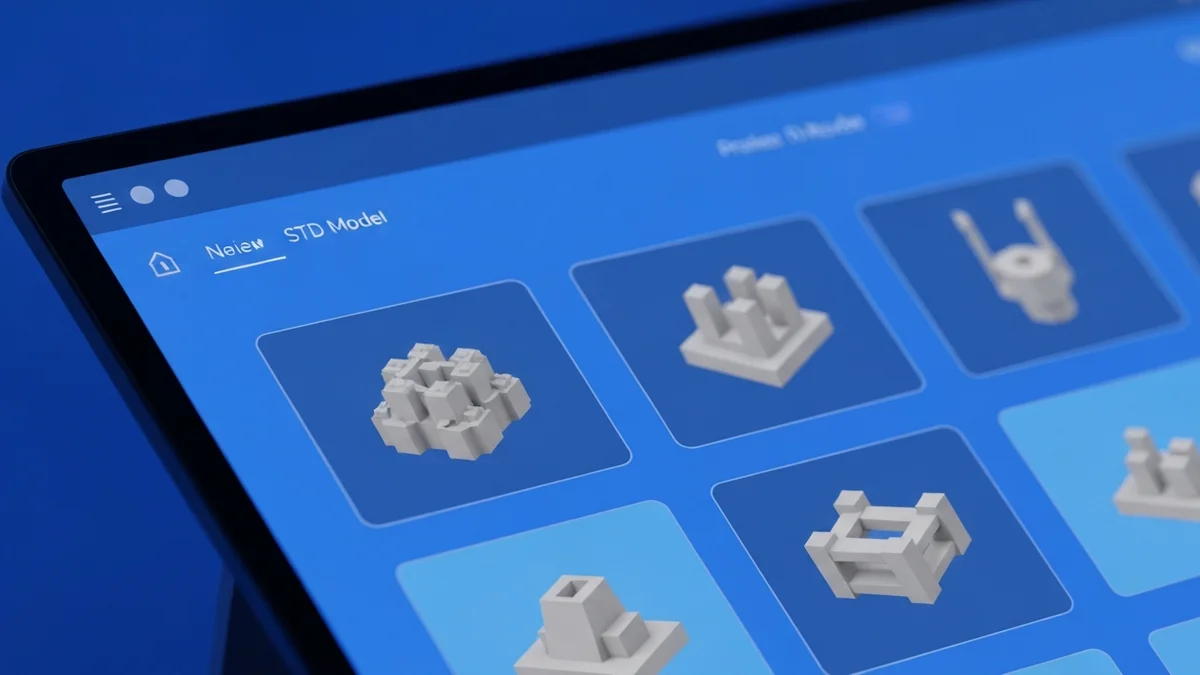
Shopify2SimplyPrint bridges the gap between your Shopify product catalogue and your SimplyPrint file library through a mapping layer. On the Products page inside Shopify2SimplyPrint, you connect each Shopify product (or individual variant) to the specific print file stored in SimplyPrint that should be used to fulfil it.
This mapping is configured once. From that point forward, every order containing that product will automatically have the correct file attached to its print job. You do not need to think about which file to use on a per-order basis — that decision is encoded in the product mapping and applied consistently every time.
The mapping also stores the yield — how many units of the product come from a single print run. If you print four small items on one build plate, the yield is four. Shopify2SimplyPrint uses this to calculate the correct number of print jobs for any order quantity. An order of eight units with a yield of four creates two print jobs automatically, not eight.
Auto-Map by EAN
Manual mapping works well for most catalogues, but Shopify2SimplyPrint also supports an automatic mapping method called Auto-Map by EAN. If the filename of a print file in SimplyPrint contains the EAN barcode (or any product barcode) of the corresponding Shopify product, Shopify2SimplyPrint can detect the match and create the mapping automatically — no manual linking required.
This is particularly useful for large catalogues where manually mapping hundreds of products would be tedious. It is also useful as a standard practice when adding new products: create the file in SimplyPrint with the product barcode in the filename, and the mapping will be detected without any additional steps in Shopify2SimplyPrint.
Auto-Map by EAN can be used for product variants as well. If each color variant has its own barcode and you name your files accordingly, Shopify2SimplyPrint can map each variant to its correct file automatically.
Handling Product Variants
Product variants are one of the most common sources of manual errors in print job creation. A product sold in three colors and two sizes has six variants, each requiring a different file. When jobs are created manually, it is easy to accidentally attach the wrong variant's file — especially under time pressure.
Shopify2SimplyPrint handles variants by allowing separate file mappings for each Shopify variant. In the Products page, you expand a product to see all its variants and configure each one individually. A "Vase" product might have "Large — Black PLA," "Large — White PLA," "Small — Black PLA," and "Small — White PLA" as separate variants, each mapped to its own print file with its own yield setting.
When an order contains multiple variants, Shopify2SimplyPrint creates the appropriate number of jobs, each with the correct file for its variant. A customer ordering one large black vase and two small white vases in the same order will generate one job with the large-black file and two jobs with the small-white file — all in a single automated step.
File Formats and How Files Are Referenced
Shopify2SimplyPrint works with whatever file formats SimplyPrint supports — typically STL and 3MF. Since all print files live in SimplyPrint's own file library, Shopify2SimplyPrint does not need to store or transfer the files itself. It passes a file reference (the file's identifier in SimplyPrint) to the SimplyPrint API when creating a job. SimplyPrint then handles attaching the file to the job using its own internal storage.
This means your files stay in SimplyPrint where your operators manage them. Updates to a file in SimplyPrint — a redesigned model, a revised support structure, an updated slice — are automatically reflected in all future print jobs without any changes needed in Shopify2SimplyPrint.
Best Practices for File Naming
Whether you use Auto-Map by EAN or manual mapping, a consistent file naming convention in SimplyPrint makes management much easier. Including the product SKU or barcode in the filename is the most reliable approach — it makes files identifiable at a glance and enables Auto-Map. A filename like dragon-figurine-red-SKU12345.3mf immediately tells any operator which product it belongs to, and the SKU at the end can be matched automatically by Shopify2SimplyPrint.
For shops with large catalogues, this small naming discipline at the point of file creation saves significant time later and makes the automated mapping more reliable across the board.